Geode Geometry Dash on a Steam Deck or a Linux desktop is very doable, but it rewards understanding over copy-pasting. There is no native Linux build of Geometry Dash, so everything runs through Proton or Wine: the game, the Geode installer and the mods. This deep-dive explains how those layers fit together, where Geode must be installed, the one launch option that makes it load, and how to fix the problems Linux players actually hit.
Geode is a fan-made, open-source mod loader for Geometry Dash. This site is an unofficial guide, not the Geode team. For anything version-specific, the official Geode install page and the official Geode FAQ have the final word. If you are on a Mac rather than Linux, our Mac and Linux setup guide covers the native macOS installer.
Version Note Before You Start
On November 5, 2026, we checked the official releases and install page:
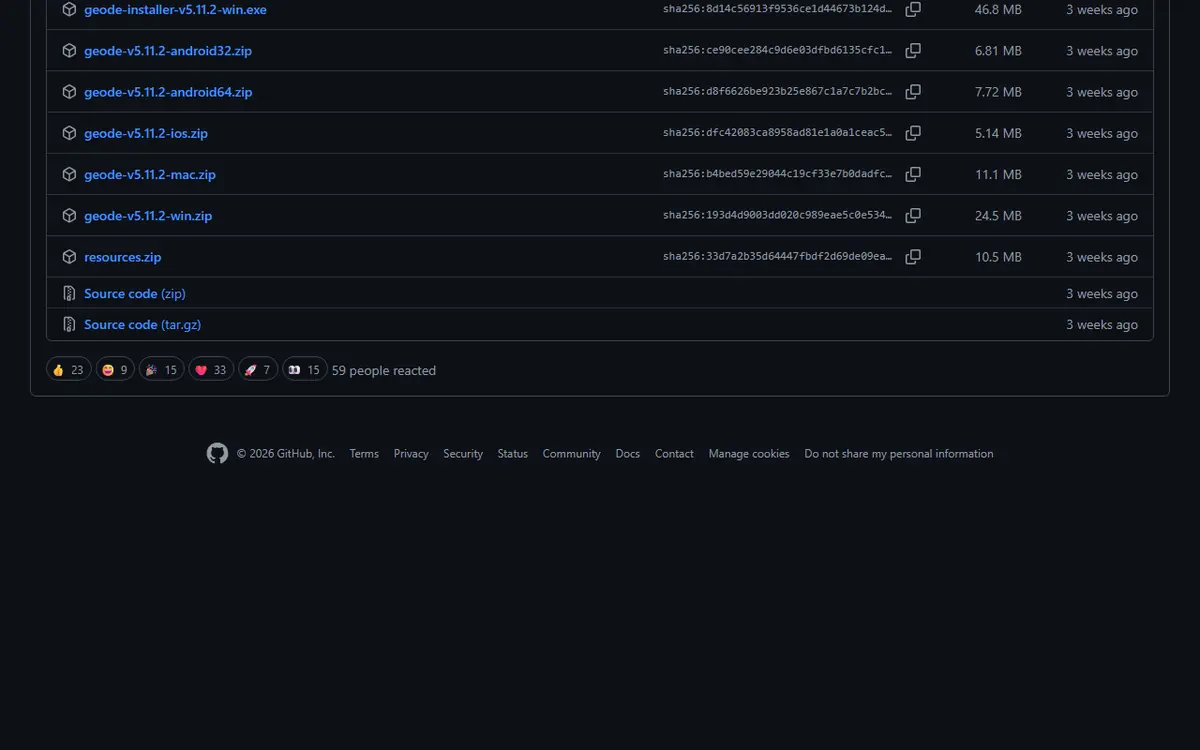
- Geode v5.11.2 (October 15, 2026) is the latest stable release. The install page says it only works on GD 2.2081.
- Geode v6.0.0-alpha.1 (November 1, 2026) brings GD 2.2091 support, but its release notes call it an alpha "meant for developers, and things will break."
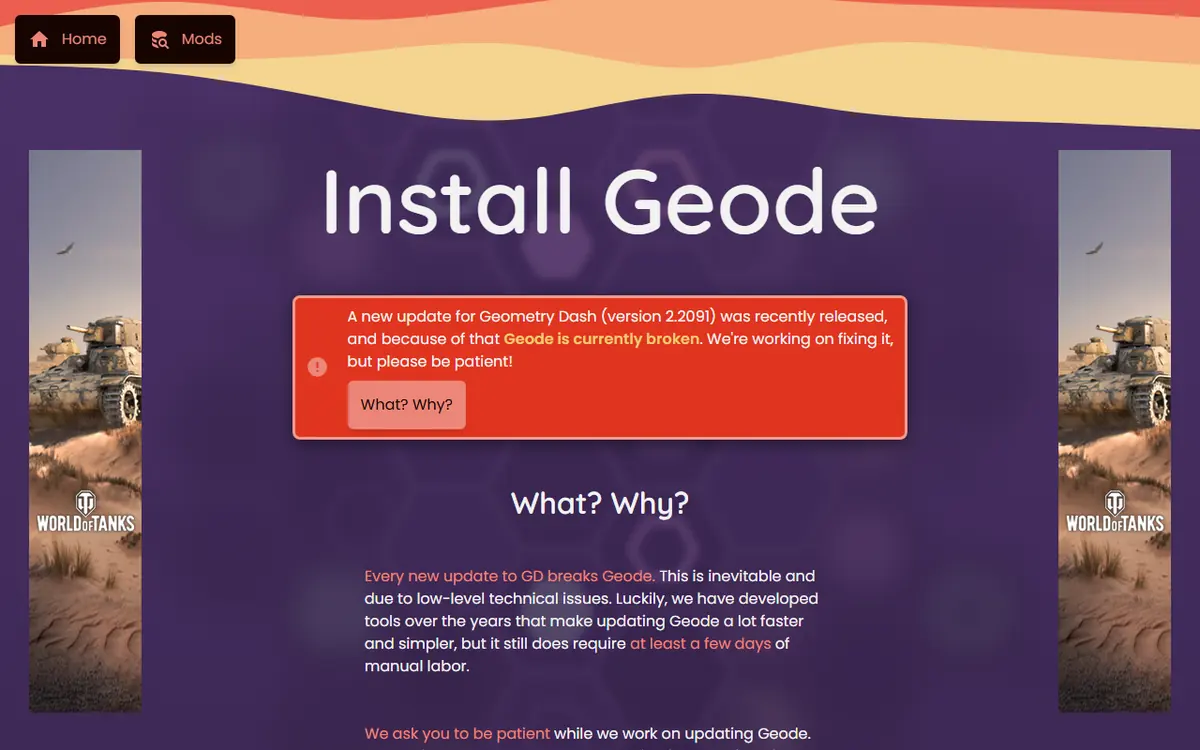
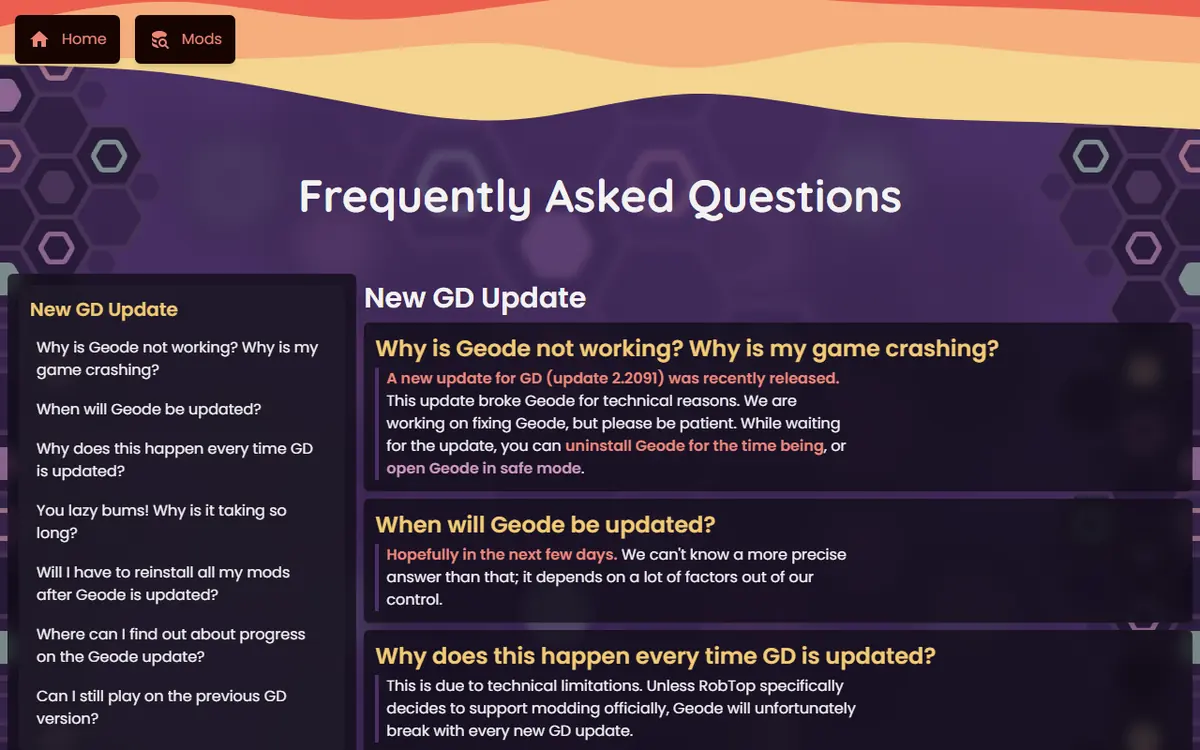
- The install page currently says Geode is broken on GD 2.2091 and the team is working on a fix.
- For Linux, the install page says Geode is available "through Wine." Recent releases also include a Linux installer script (
.sh) among their assets.
Steam updates Geometry Dash automatically by default, so a Deck that was working yesterday can be on a new game version today. Our Geode update cycle and rollback plan explains how to handle that.
How the Layers Fit Together
Understanding the stack makes every later step obvious. When you press Play on a Steam Deck, Steam starts Proton, which creates a Windows-like environment called a prefix. Inside that prefix, the Windows version of Geometry Dash runs as if it were on a PC. Geode is a Windows mod loader, so it has to be installed into that same Windows game folder and loaded by that same Proton session.
| Layer | What It Is | What Can Go Wrong |
|---|---|---|
| SteamOS or your distro | The Linux system underneath | Rarely the problem; outdated graphics drivers on desktop Linux |
| Proton or Wine | Compatibility layer that runs Windows programs | A Proton version that does not suit the game |
| Prefix | The Windows-like environment for one game | Installing Geode into a different prefix than the game uses |
| Geometry Dash (Windows build) | The game files in your Steam library | Pointing the installer at a lookalike folder |
| Geode loader | Mod loader inside the game folder | Not loading because the DLL override is missing |
| Mods | .geode files in geode/mods | Outdated mods after a game update |
Almost every Linux problem maps to one row of this table, which is why we troubleshoot from the top down.

Step 1: Get the Windows Build Running Under Proton
- Install Geometry Dash from your Steam library. On a Steam Deck this works from Game Mode.
- Open the game's Properties and, under Compatibility, force a Steam Play compatibility tool. A recent stable Proton is a sensible default.
- Launch the game once without any mods and play a level for a moment. This confirms the base game works and lets Proton create its prefix.
- Quit the game completely.
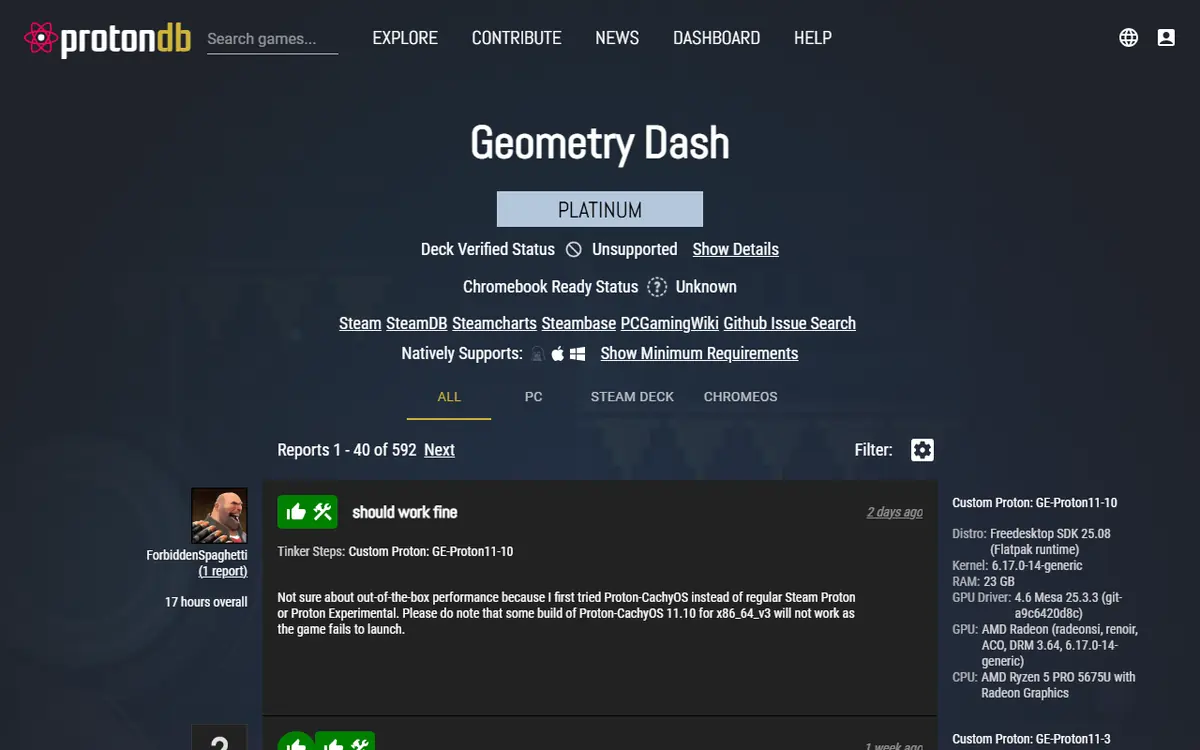
Do not skip the clean test run. If the unmodded game does not start, Geode cannot fix that, and any later problem would be impossible to diagnose. Community compatibility reports for the game are collected on ProtonDB, which is useful if a particular Proton version misbehaves.
Step 2: Switch to Desktop Mode and Find the Game Folder
On a Steam Deck, hold the power button and choose Switch to Desktop. Installing a Windows program and browsing folders is far easier with a desktop, a file manager and a cursor. Desktop Linux players are already there.
Open Steam, right-click Geometry Dash, choose Manage, then Browse local files. The folder that opens is the Windows game folder Geode needs. Note its full path. The official FAQ points out that inside Wine your Linux root filesystem appears as the Z: drive, so this path will show up under Z: when the Windows installer asks for the game.

Step 3: Run the Geode Windows Installer
Download the Windows installer (.exe) from the official install page. The official FAQ says to run it with Wine. There are a few common ways Linux players do this:
- Plain Wine from your distribution: run the installer with Wine and browse to the game folder through the Z: drive.
- A Wine front end such as Lutris or Bottles, if you already use one to manage Windows programs.
- The game's own Proton prefix, using a helper tool that runs extra programs inside a Steam game's prefix, if you prefer to keep everything together.
Whichever you choose, the only thing that matters is the destination: the installer must write Geode into the folder you found with Browse local files. When it asks for the game, select that folder rather than a similarly named one elsewhere. Afterwards, check that a new geode folder exists next to the game files.
Step 4: Add the DLL Override
This is the step most Linux guides forget, and it is the reason Geode installs fine yet never appears. The official FAQ says Geode on Linux "requires one extra step to function correctly." In Steam, open Geometry Dash's Properties, find Launch Options, and enter:
WINEDLLOVERRIDES="xinput1_4 dll override" %command%
If you launch the game through a different launcher, set the same override in that launcher's environment settings. Then return to Game Mode on a Deck and start the game. A Geode button should appear in the bottom row of the main menu.
Step 5: Install Mods and Set Up Controls
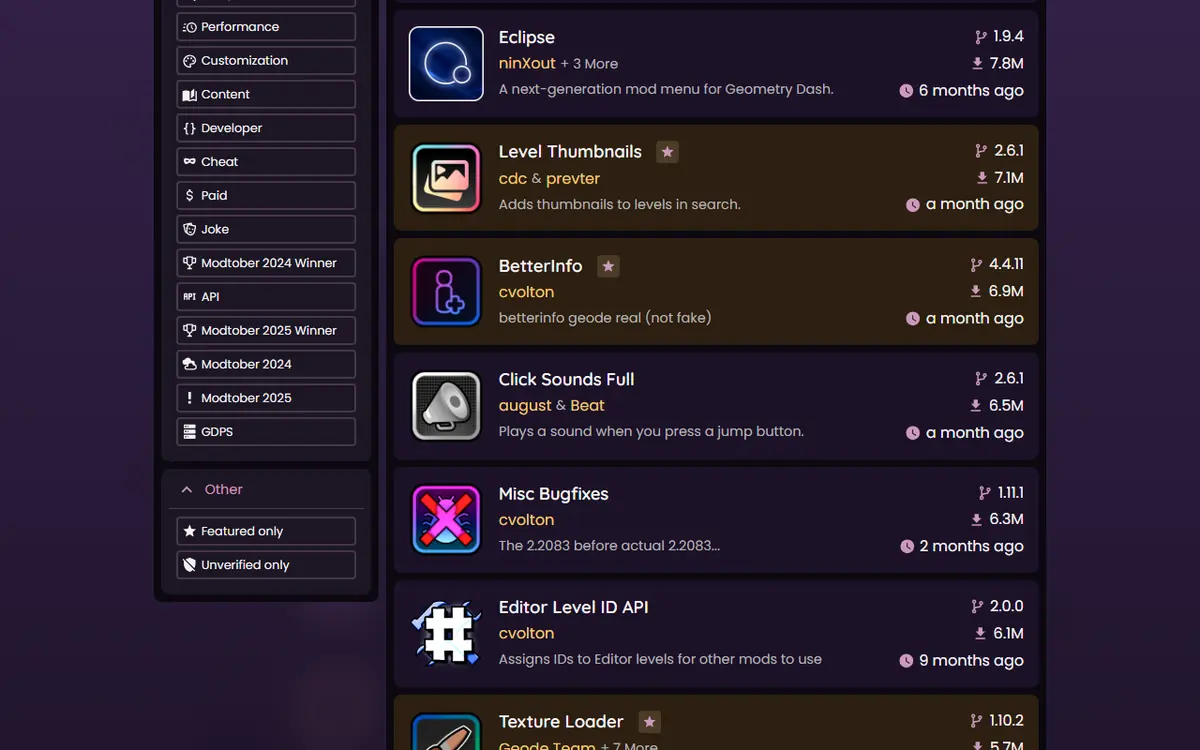
Open the Geode button and browse the Download tab. Install one or two mods first, restart, and confirm they load before adding more. Because you run the Windows build, check that each mod lists Windows support on its page in the official Geode mods index.
On the Deck, menus that expect a mouse are easiest with the touchscreen or the trackpads. Many players also bind a button to a keyboard key in the Steam controller settings, which helps with mods that use keybinds. Keep your layout simple until everything works.
Platform Notes: Steam Deck Versus Desktop Linux
The steps are the same on both, but the details differ. A Steam Deck ships with SteamOS and Proton ready to go, so the main hurdle is switching to Desktop Mode for the installer. On a desktop distribution you may already have Wine, Lutris or Bottles installed, and you are more likely to run into outdated graphics drivers or a non-Steam copy of the game. Whatever your setup, Geode only ever officially targets the Windows build here, so keep the game on Steam with Proton for the least friction.
Performance and Battery
Geometry Dash is light, but heavy texture packs and long mod lists still cost frame time and battery on a handheld. Add mods gradually, disable ones you do not use, and keep a lean setup for travel. If you notice stutter only after adding a specific mod, that mod is the first suspect, not Proton.
Troubleshooting Geode on Steam Deck and Linux
The Geode Button Does Not Appear
Check, in order: the launch option is present and typed exactly; the geode folder is inside the folder Browse local files opens; and you are launching the same Steam entry you configured. Most cases are a missing override or Geode installed into a different folder.
The Game Crashes After Installing a Mod
Use Safe Mode, which loads no mods. The official FAQ says to hold Shift while the game launches on Windows and Mac; on Linux you are running the Windows build, so the same method should work with a keyboard connected. If it does not, or you have no keyboard, switch to Desktop Mode and move the newest file out of geode/mods temporarily.

The Game Does Not Start at All
Remove the launch option and confirm the plain game still runs. If not, the issue is Proton, not Geode: try a different stable Proton version. If the plain game runs but Geode crashes it, a game update may have outpaced Geode.
Everything Broke After a Game Update
The official FAQ says updates break Geode unless RobTop officially supports modding, and that you will not need to reinstall your mods afterwards. Disable outdated mods and wait for a stable release.
Saves, Safety and Uninstalling
Your save lives outside the mods folder, but Proton prefixes can be reset by actions such as deleting a game's local data, so back up before experimenting. Our save backup and transfer guide explains how. Download Geode only from geode-sdk.org or the official geode-sdk GitHub organization, and never use a "Linux build" of Geometry Dash from an unofficial site. Geode never needs your Geometry Dash password. Cheat-style mod menu features are fine for practice but can get you leaderboard-banned on real runs.
To remove Geode, run the official installer again with Wine and use its uninstall option, clear the launch option, and use Steam's Verify integrity of game files to restore the original game.
Frequently Asked Questions
Does Geode Geometry Dash work on Steam Deck?
Geometry Dash has no native Linux build, so on Steam Deck you run the Windows version through Proton and install Geode's Windows build with Wine. The official Geode install page lists Linux support as available through Wine.
What is the extra Linux step for Geode?
A DLL override. The official FAQ says to add WINEDLLOVERRIDES="xinput1_4=n,b" %command% to Geometry Dash's Steam launch options. Without it, Geode usually does not load even though it installed correctly.
Do I need Desktop Mode on the Steam Deck?
For installation, yes in practice: running a Windows installer and browsing folders is much easier with the desktop. After setup, you can play in Game Mode as usual.
How do I open Safe Mode on Linux or Steam Deck?
The official FAQ describes holding Shift while the game launches on Windows and Mac. On Linux you run the Windows build, so the same Shift method should apply with a keyboard connected; if it does not, remove problem mods from the geode/mods folder.
Will Geode on Linux affect my save?
Geode stores mods separately from your save, but Proton prefixes can be reset by Steam actions such as deleting local content. Back up your save and sync it to your Geometry Dash account first.
Should I install the GD 2.2091 alpha on Steam Deck?
Only if you are a developer. As of November 5, 2026, stable Geode v5.11.2 targets GD 2.2081, and v6.0.0-alpha.1 is an alpha the Geode team says is meant for developers.
