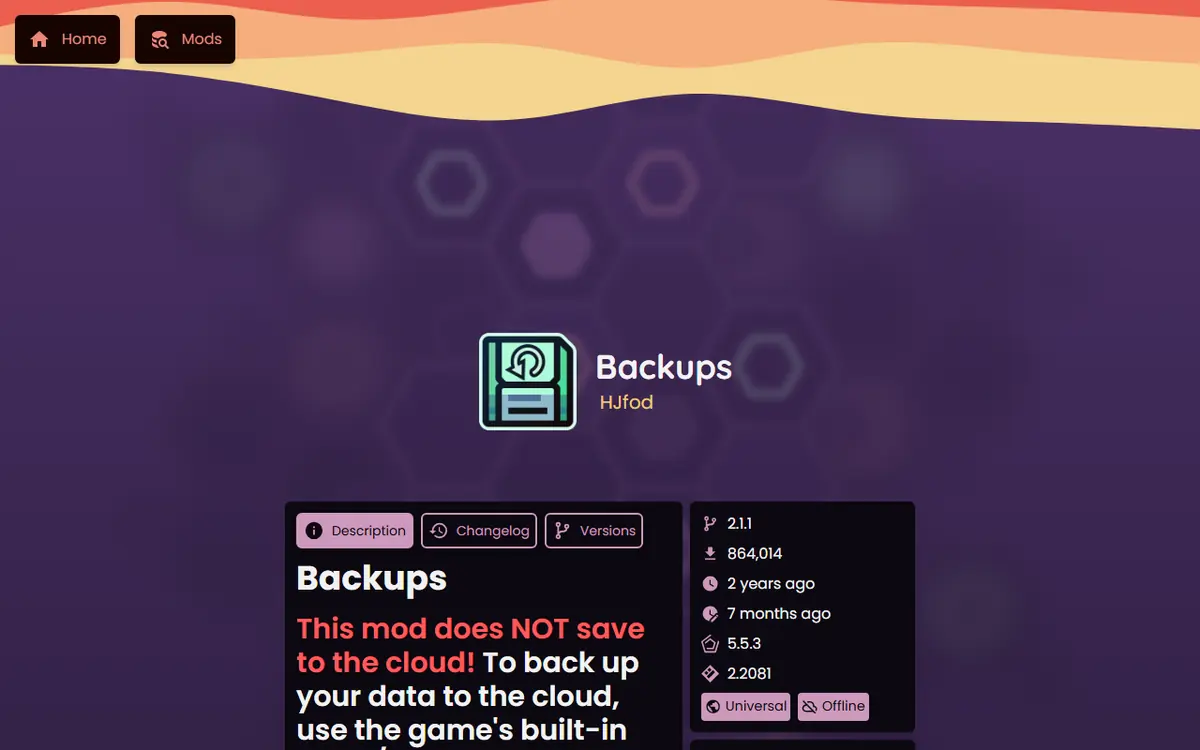
Geode Geometry Dash modding is safe for your progress when you follow one rule: back up before every big change. Geode keeps its own files apart from your save, but update weeks, reinstalls, new devices and experimental builds all create moments where a single wrong tap can overwrite hours of progress. This guide shows the three layers of protection, how to move a save from PC to mobile and back, where the save files live on Windows, and which Geode mods can help.
Why Your Save Is Separate From Geode
On desktop, Geode installs into a geode folder inside the game folder. Mods live in geode\mods and crash reports in geode\crashlogs. Your Geometry Dash save is not in there. That separation is why you can disable mods, uninstall Geode or run Safe Mode without touching your stars, icons or levels.
So why back up at all? Because the risky moments are not Geode itself. They are reinstalling the game, switching devices, pressing the wrong button in the account menu, or testing a pre-release build. Right now that matters more than usual: on November 5, 2026 the official install page says Geode is broken on GD 2.2091, stable v5.11.2 only supports 2.2081, and the v6.0.0-alpha.1 build with 2.2091 support is labelled an alpha meant for developers. More players are uninstalling and reinstalling this week, which is exactly when backups pay off.
The Three Layers of Save Protection
| Layer | What it protects | Platforms | Main risk |
|---|---|---|---|
| Account cloud save | Progress tied to your Geometry Dash account | All platforms | Pressing Load on the wrong device |
| Local save file copy | An exact snapshot of your files | Easiest on Windows | Copying while the game is running |
| Backup mods | Extra in-game backup tools | Wherever the mod supports your platform | Mods break after game updates too |
Use at least two layers. The account save protects you if your device fails; the local copy protects you if something goes wrong with the account sync.
Layer 1: Save to Your Geometry Dash Account
Geometry Dash has a built-in account system. Once you are logged in, the account screen in the game's settings offers two buttons that matter:
- Save uploads your current local progress to your account.
- Load downloads the account copy and replaces your local progress with it.
The direction matters. Save on the device that has the newest progress. Load only on a device you are happy to overwrite. Most lost-progress stories come from pressing Load on the device that was actually ahead.
Check That the Save Worked
Wait for the game to confirm before closing it, and do not switch apps or lose your connection mid-upload. If you are about to do something risky, such as a reinstall, a simple test is to note a few numbers from your stats screen first. After a Load on any device, compare them. If they match, the account copy is current and you can continue with confidence.
When to Save
- Before installing or updating Geode.
- Before a Geometry Dash update reaches your device.
- Before uninstalling, reinstalling or switching devices.
- After a long session with big progress, such as a new completion.
Never type your Geometry Dash password into anything except the game itself. Geode does not need it, and any tool or website asking for it to "sync" or "restore" progress is a scam.
Transferring Progress From PC to Mobile (and Back)
The account system is also the official way to move progress between platforms. The process is the same in both directions.
- On the source device (for example, your Steam PC), log in to your account and press Save. Wait for it to confirm.
- Install the full Geometry Dash on the target device from its official store.
- Open the game on the target device, log in to the same account and press Load.
- Check your stats, icons and levels before playing.
- Only then install Geode on the new device.

Platform Notes for Transfers
- Android: the Geode launcher loads your Play Store copy of the full game, so log in and Load in that game before using the launcher heavily. Our Android launcher setup guide covers the install.
- iOS: the Geode iOS launcher needs the full App Store game and iOS 14 or later. Transfer your save first, then set up the launcher.
- Lite: Geometry Dash Lite is a separate app and is not supported by Geode. Do not assume Lite progress moves automatically.
- Linux: you run the Windows build through Wine or Proton, so the account method works exactly as on Windows.
Layer 2: Local Save Files on Windows
On Windows, Geometry Dash stores its save in your local app data folder. Type %LOCALAPPDATA%\GeometryDash into the File Explorer address bar and press Enter. The two files that matter are:
CCGameManager.dat: your general progress, such as stats, icons and settings.CCLocalLevels.dat: the levels you created in the editor.
How to Make a Local Backup
- Close Geometry Dash completely so the files are not being written.
- Open
%LOCALAPPDATA%\GeometryDash. - Copy both .dat files to a dated folder outside the game, for example on a USB drive or cloud drive.
- Keep two or three older copies rather than overwriting the only one.
How to Restore
Close the game, copy your backed-up files back into the same folder (replace when asked), and launch. If the game is logged in to an account, avoid pressing Load afterwards unless you want the cloud copy instead.
On macOS, Android and iOS, the file locations are less accessible, and on mobile they sit inside app storage that normal file browsers often cannot reach. Rely on the account save as your main layer there, and back up more often before risky changes such as reinstalling the Geode launcher or the game itself.
Layer 3: Geode Mods That Help
Two mods in the official Geode mods index are relevant here. Both are by HJfod, and we describe them only by their index listings:
| Mod | Creator | Index description | Latest version (Nov 5, 2026) | Downloads |
|---|---|---|---|---|
| Backups | HJfod | "Never lose your progress again!" | v2.1.1 (built for GD 2.2081) | 864,010 |
| GDShare | HJfod | "Share levels as files" | v1.6.0 (built for GD 2.2081) | 908,519 |
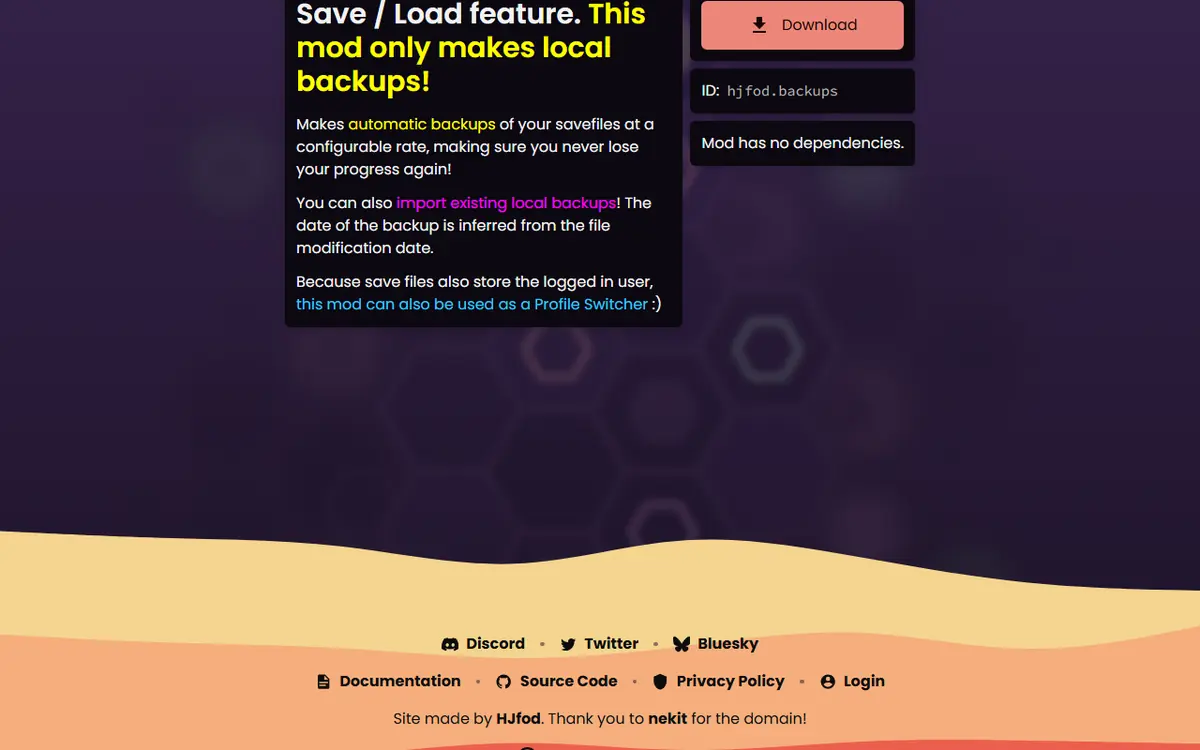
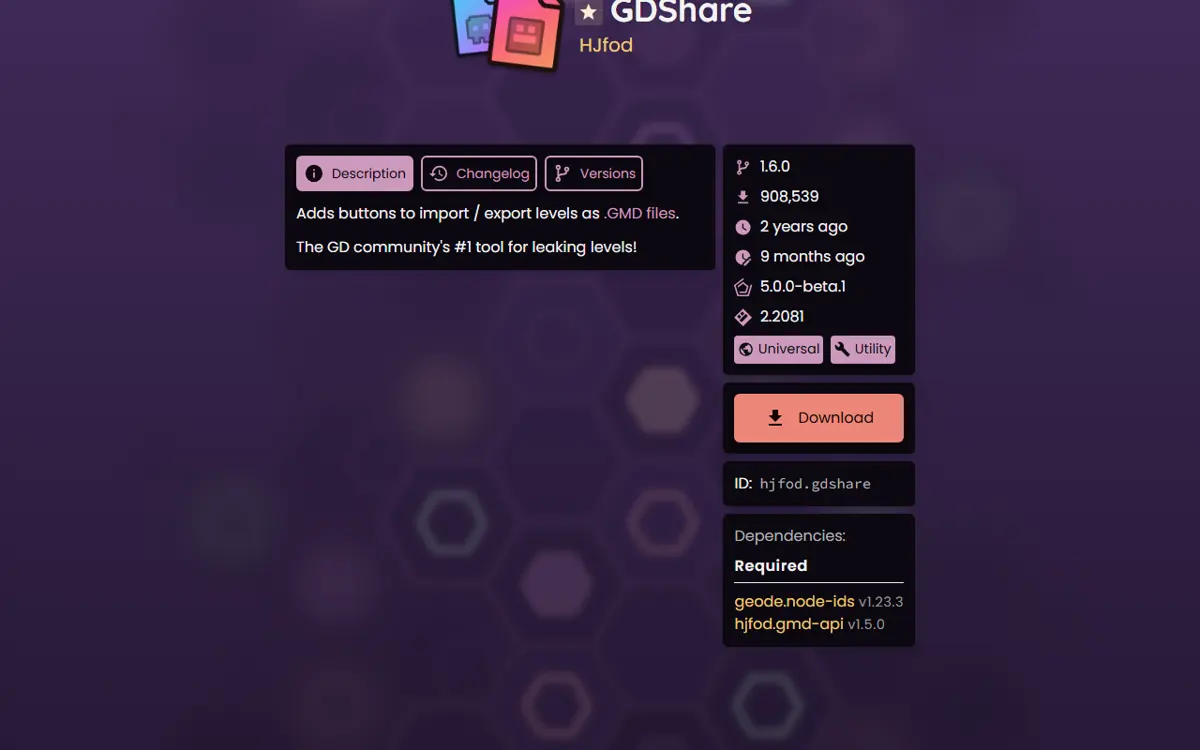
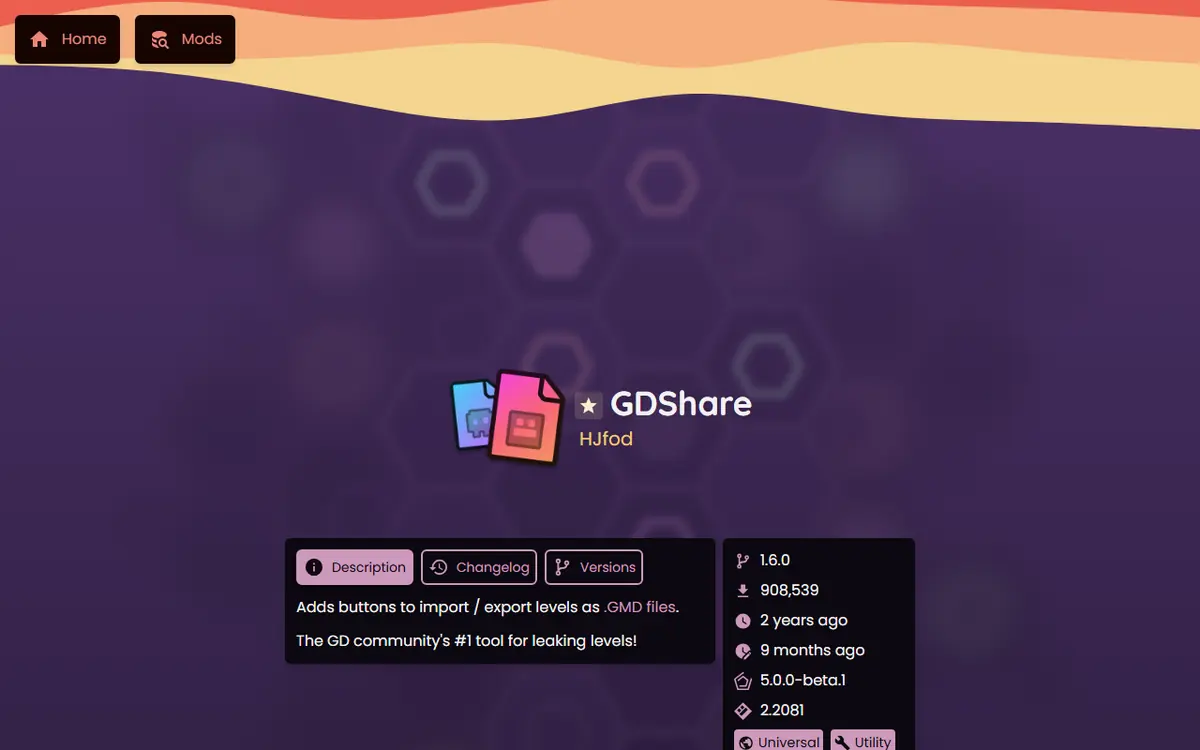
Exporting your most important created levels as files with a level-sharing mod gives you a copy of each level that does not depend on a single save file. Read each mod's page for its current features and supported platforms before relying on it, and remember that mods also break after game updates: both listings above still targeted GD 2.2081 when we checked. A mod is a helpful extra layer, never your only one. To install mods safely, use the in-game browser explained in our Geode mods browser guide.
What a Backup Does and Does Not Cover
It helps to be clear about what each layer actually saves, so nothing surprises you on restore day.
| Item | Account save | Local .dat copy (Windows) | Geode folder |
|---|---|---|---|
| Stats, icons and general progress | Yes | Yes (CCGameManager.dat) | No |
| Levels you created | Yes | Yes (CCLocalLevels.dat) | No |
| Installed Geode mods | No | No | Yes (geode\mods) |
The practical takeaway: your progress and your mod setup are backed up in different places. If you want to rebuild a modded setup quickly after a reinstall, also keep a written list of your mods and any settings you changed. Mods themselves can always be downloaded again from the official index, but your own choices are easier to restore from notes.
Before You Install Geode on a New Device
A new phone or PC is the moment most transfers go wrong, usually because Geode gets installed before the save arrives. Follow this order:
- Install the full game from the official store and open it once.
- Log in and press Load to bring your progress over.
- Confirm your progress looks right.
- Install Geode for that platform (installer on Windows and macOS, launcher on Android and iOS).
- Reinstall your mods from the in-game Geode menu.
Doing it in this order keeps the two systems apart, so if something fails you know whether it was the save or the mod setup.
A Simple Backup Routine
- Weekly: press Save in the account menu.
- Before any Geode or game update: Save, plus a local copy on Windows.
- Before uninstalling or switching devices: Save, local copy, and export important levels.
- Before testing an alpha or nightly build: all of the above, and note your mod list.
Our Geode update cycle and rollback plan builds this routine into a full update-day checklist.
Troubleshooting Save Problems
Progress Looks Reset After Installing Geode
Geode does not store your save, so first check you opened the right copy of the game. On Android, make sure you are in the full game through the launcher, not Lite. On PC, confirm you launched the Steam copy you normally play.
Load Overwrote Newer Progress
If you have a local backup from before, restore it with the game closed, then press Save so the account matches. Without a local copy, the account version is all that remains, which is why the local layer matters.
The Game Crashes Before You Can Save
Start in Safe Mode, which loads no mods: hold Shift while launching on Windows or Mac, or press and hold the Launch button in the Geode Android launcher. Save from the account menu, then troubleshoot with our Geode not working fixes.
Safety Notes
Never download "save editors" or "progress unlockers" from unknown sites; many ask for your password or contain malware. Only use the game's own account system, file copies you made yourself, and mods from the official index. Keep backups private, since a save file is tied to your progress.
Frequently Asked Questions
Does installing Geode delete my Geometry Dash save?
No. Geode keeps its files and mods in a separate geode folder, and your save files are stored elsewhere. Backing up before installing, updating or uninstalling is still the safest habit.
How do I move my progress from PC to my phone?
Log in to the same Geometry Dash account on both devices. On the PC, use Save in the account menu. On the phone, use Load. Load replaces the phone's local data with the account copy, so be sure the right device is the source.
Where are Geometry Dash save files on Windows?
Usually in %LOCALAPPDATA%\GeometryDash. CCGameManager.dat holds your general progress and CCLocalLevels.dat holds the levels you created. Copy both to a safe folder while the game is closed.
What do the Backups and GDShare mods do?
Both are Geode mods by HJfod in the official index. Backups is described as a way to never lose your progress again, and GDShare lets you share levels as files. Check each mod page for its current features and platforms.
Can I keep using my save after uninstalling Geode?
Yes. Uninstalling Geode removes the loader and, if you delete it, the geode folder with your mods. Your Geometry Dash save is stored separately, so the unmodded game opens with the same progress.
Should I back up before trying the Geode v6 alpha?
Yes. The alpha is meant for developers and things may break. Save to your account and keep a local copy of your save files before installing any pre-release build.
